

Resolve Payouts
You can now manually mark a payout as Resolved when it's been closed out through means other than reissuing—for example, when you've mailed a physical check to the recipient. This keeps your records accurate by clearing payouts that would otherwise linger in an expired, failed, or canceled state.
Note: The Resolve action is available to users with an Admin or Finance role.
What's new
The Cancel action has been replaced with a more flexible Resolve action, giving you a single, clear way to close out payouts regardless of how they were handled.
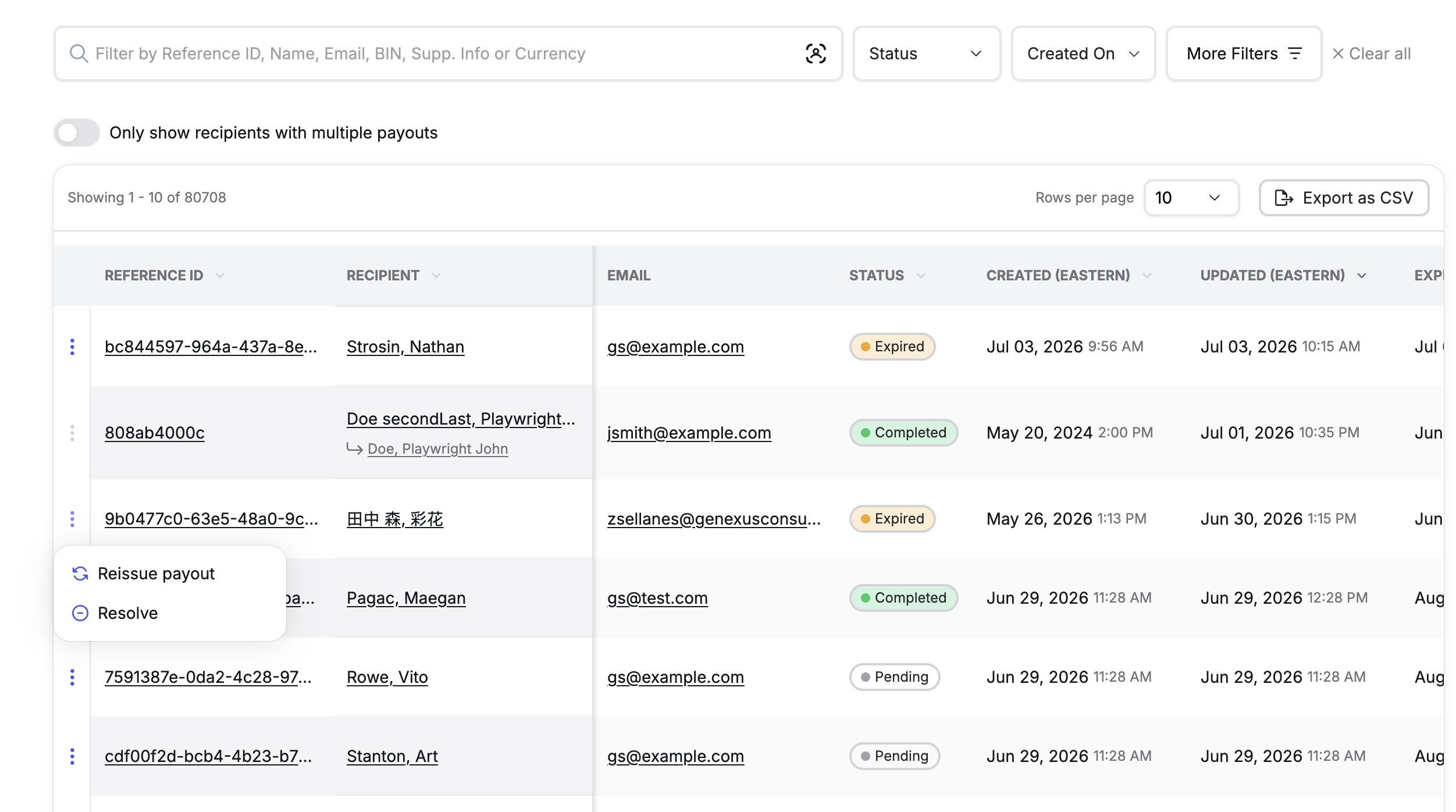
When you can resolve a payout
The Resolve action is now available for payouts in any of these statuses:
- Pending
- Expired
- Failed to Send
- Failed to Process
How it works
When you select Resolve on a payout, you'll choose a reason:
- Sent a physical check – Use this when you've mailed a check to close out the payout.
- Resolved – Other – Use this for any other manual resolution. You'll be asked to add a short description.
- Canceled – Available for Pending payouts only, when you simply need to cancel.
Choosing "Sent a physical check" or "Resolved – Other" moves the payout to the new Resolved status.
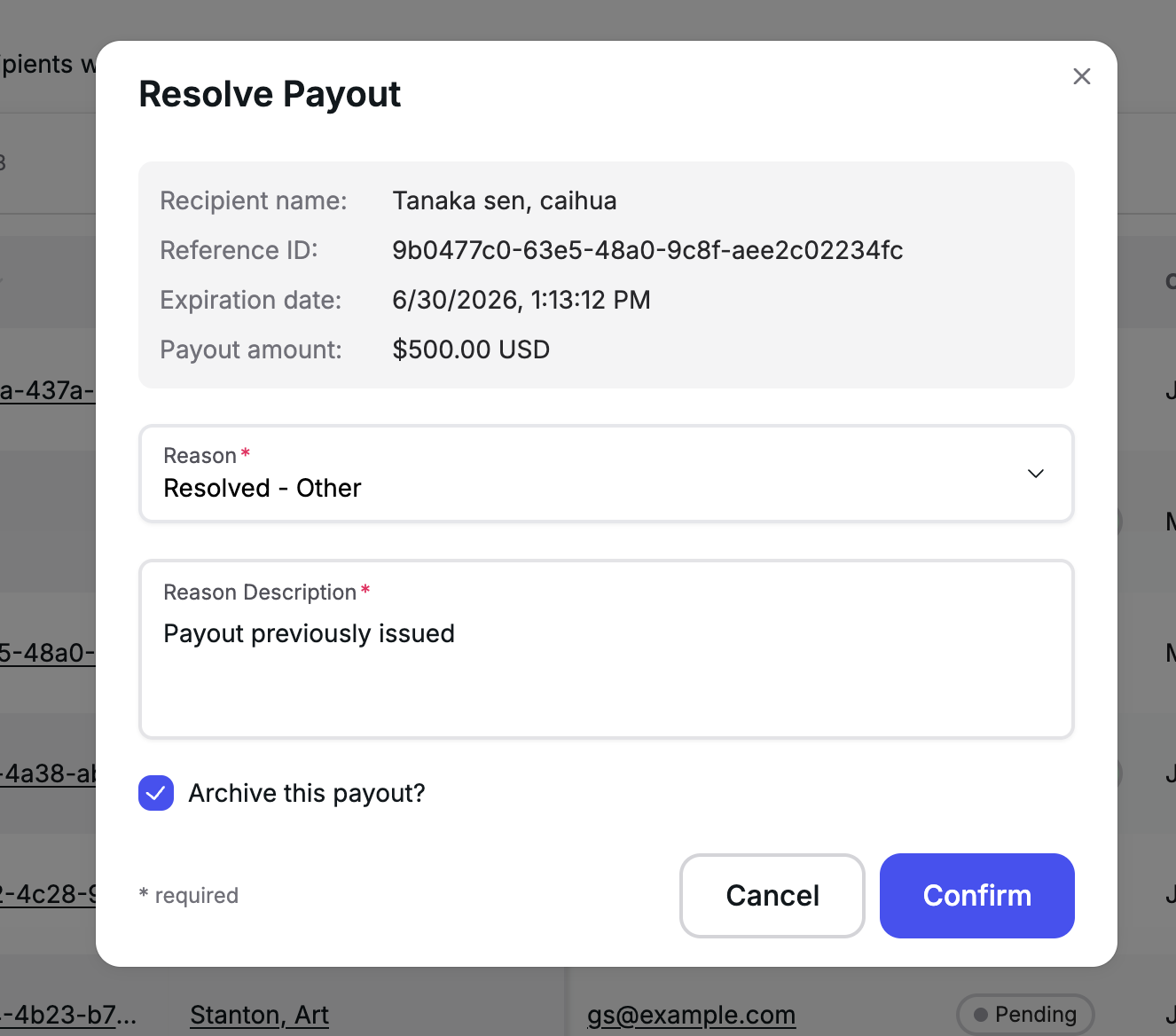
The Resolved status
Resolved payouts display a green status pill so you can see at a glance that they've been closed out. Hovering over it shows: "The Payout has been manually resolved."
Archiving
The resolution window includes an Archive checkbox. Select it to move the payout to your archive at the same time you resolve it, keeping your active list focused on payouts that still need attention.
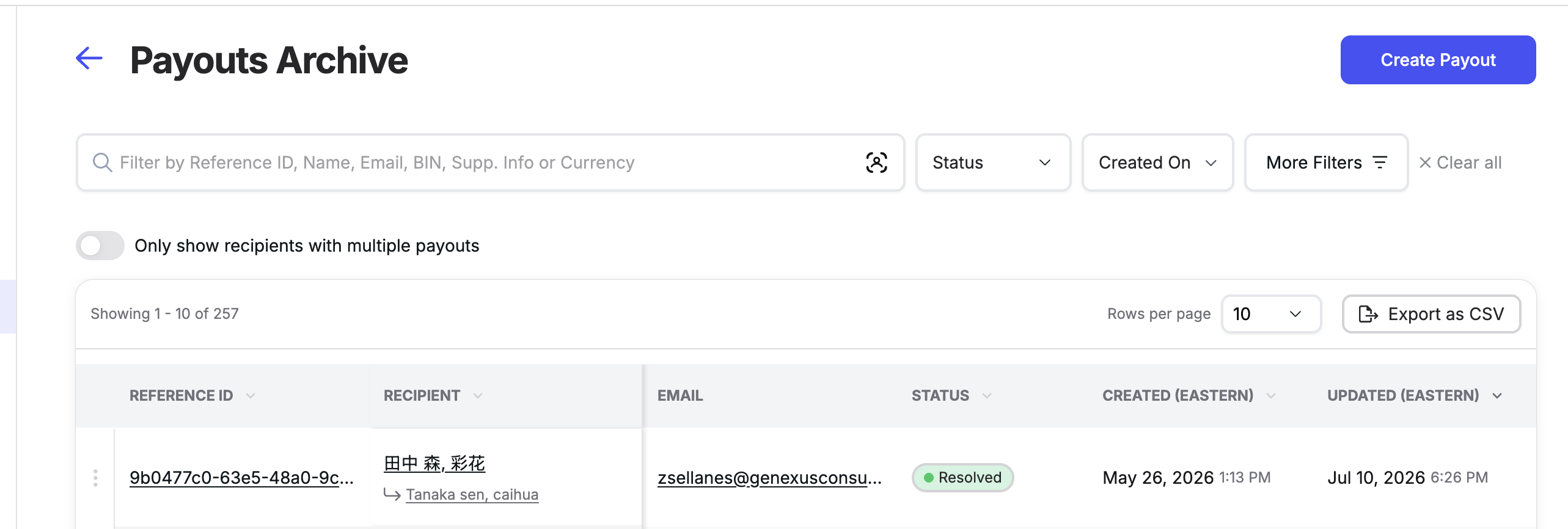
Change history
Every resolution is recorded on the payout's Change History page, so you always have a clear audit trail of when and why a payout was closed out.
Updated 3 months ago